Status monitor
The status monitor is a separate screen for the operator: see which printer needs attention now and which print finishes next. Printers and Queue share the same tile layout. A change of state changes the color, icon and text without changing the tile's size.
Next release
The monitor is implemented in the development build and is part of the next release. If your installed version has no Open monitor button, check the BamDude release notes before following this guide.
Open it on a second display
- On Printers or Queue, select Open monitor.
- Move the new window to the second display and select Full screen.
- Keep working in the original window. The monitor updates independently.
If the browser blocks the window, select Open in a new tab. If full screen is unavailable, maximize the window. You can also open /monitor?view=printers or /monitor?view=queues on your BamDude server while signed in.
The monitor is read-only. Select a tile for details; a signed-in user can follow a link to the corresponding printer or queue to work with it. Show all on that working page clears the temporary printer filter and restores its saved filters. Job details follow your normal permissions; a restricted job stays in its real queue position with its name hidden.
Choose the view
| View | What it helps you see |
|---|---|
| Printers | Printer state, current print progress, remaining time and temperatures. |
| Queue | Current work, next job, queued count, queue pause or waiting reason, and the estimate for when the printer becomes free. |
A paused queue can still be printing. It prevents the next queued job from starting; it does not pause the current print. Similarly, an empty queue does not mean the printer is idle. The queue view keeps these facts separate.
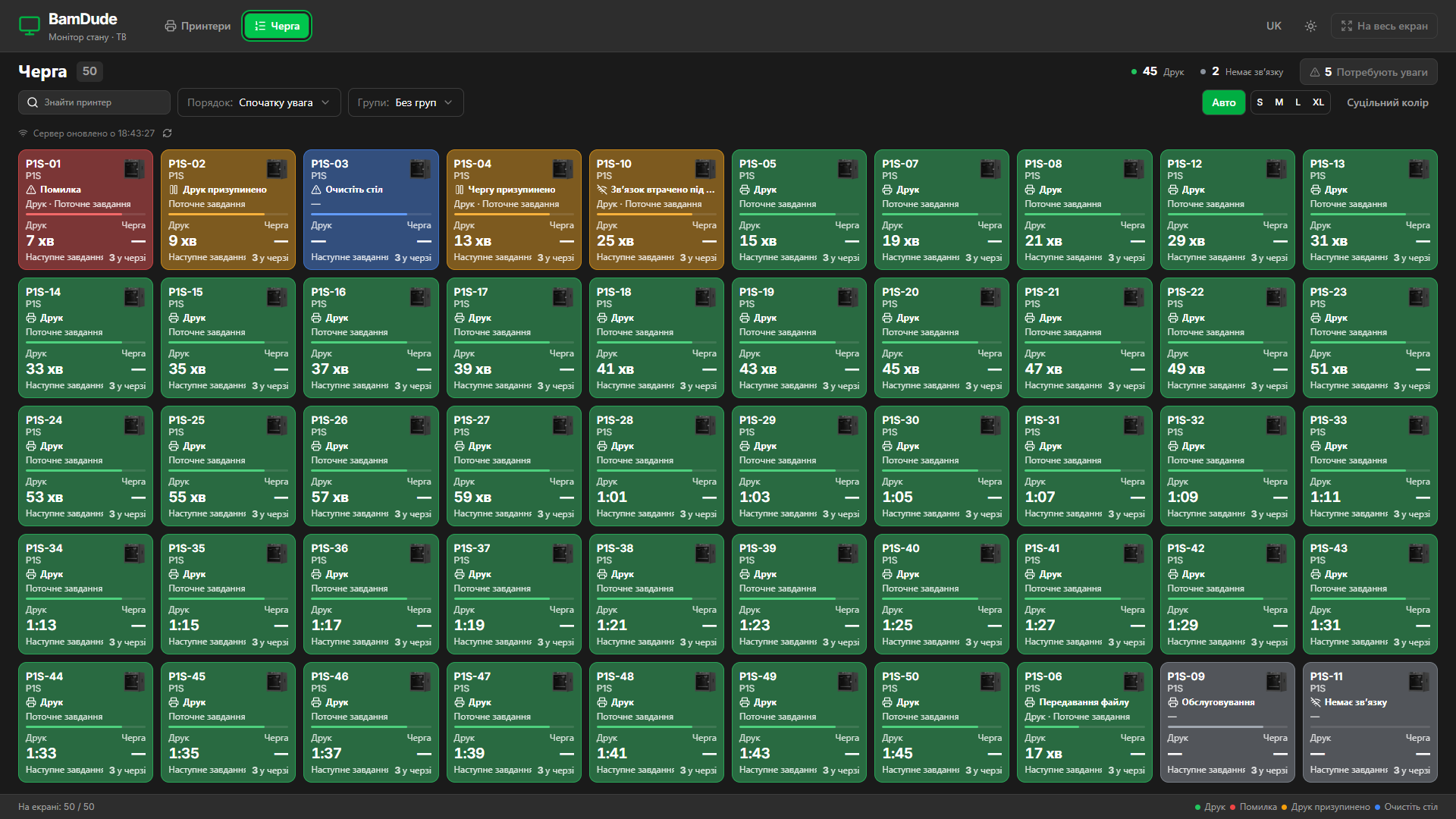
Example farm in the Ukrainian interface. Open the image for the full-size view.
Put the next intervention first
The default Attention first order puts serious active errors, pauses, plate clearance and other required intervention first. Printing jobs then appear by remaining time: 5 minutes, 7 minutes, 14 minutes. Idle, maintenance and offline printers follow active work.
| Order | Meaning |
|---|---|
| Attention first | What needs action now, followed by the prints finishing next. |
| ETA (job) | Completion of the current print only. |
| ETA (queue) | The server's estimate for all scheduled work on that printer. |
| Name | A stable alphabetical order. |
Grouping by Location or Tag is independent of ordering. A printer with two tags appears in both groups; counters still count one printer. Needs attention temporarily filters to intervention tiles; select it again to restore your previous search and grouping.
Order refreshes periodically. While a tile or its controls have keyboard focus, or you are interacting with the grid, tiles keep their positions while their state continues to update.
Read colors and time
| Color | Typical states |
|---|---|
| Green | Printing, preparing, heating or uploading. |
| Red | A serious active printer error. |
| Yellow | Print or queue paused, material or manual action needed, connection lost during known work. |
| Blue | Clear the plate, scheduled start or another automatic waiting stage. |
| Neutral | Idle, maintenance, offline or awaiting data. |
Always read the text and icon too. A stopped print without a serious printer error is not automatically a red fault. Solid colors and Soft colors retain the same state meanings, in both light and dark themes.
Print time and queue time are separate. Times under an hour use minutes; longer compact times use h:mm. Queue estimates use ≈. ≥ means the estimate is a lower bound because some jobs have unknown duration; — means there is no usable estimate. A countdown reaching zero waits for the next printer update instead of declaring the job finished.
Fit the fleet
Auto fits 50 tiles on a 1920×1080 display at normal browser zoom, with text of at least 12 px, without grouping headers. Choose S / M / L / XL when you prefer larger tiles. On smaller displays, with grouping or larger tiles, or with more printers, scroll to the rest. The footer shows how many unique printers are fully visible out of the filtered total.
Leave a TV signed out
- Open Settings → API Keys → Camera and monitor tokens → Create new token.
- Choose Status monitor, name the display and set an expiry. Creating it requires API key creation, printer read and queue read permissions.
- Copy the TV URL immediately. The secret is shown only once.
- Open the URL in the TV's browser, choose Printers or Queue, and enter full screen.
The default lifetime is 90 days, with a maximum of 365. Revoke a token in the same panel; the TV clears on its next request. Expiry, owner deactivation or loss of the owner's read permissions also ends access. Give each display its own token when you need to revoke them separately.
The TV link grants access to the whole farm
Anyone with the complete link can see operational data for all non-archived printers, including both monitor views. They cannot control printers, view cameras, or read filenames, job names, job IDs, owners or network credentials. Keep the complete link private.
The link carries the secret after #token=, not in a query parameter. Copy the generated link intact; the monitor sends that secret in a request header. It does not save it in local storage. TV mode has no links to management pages and never falls back to a browser's signed-in session.
Use Status monitor for operational tiles. Cam Wall is a different token for the camera wall; the tokens do not substitute for one another.
Understand stale data
The monitor refreshes its server snapshot every five seconds and the queue forecast every thirty seconds when needed. If the network fails, it keeps the last snapshot. After fifteen seconds without a successful snapshot, tiles show stale data and local countdowns freeze. Updates resume when connectivity returns.
Printer telemetry has its own freshness. A successful connection to BamDude does not make an old printer report fresh. Losing a printer during known active work needs attention; an offline idle printer is neutral. After a server restart, missing history is shown as unknown.